 100% Canadian

Getting cPanel access is the first step to managing your website. With it, you can handle files, emails, databases, and apps like WordPress—all from one dashboard. This guide will show you exactly how to log in, reset your password, and safely share access, even if you’re not technical.
What is cPanel Access?
cPanel is your website control panel. It allows you to:
- Manage files, emails, and databases
- Install apps like WordPress and Joomla
- Monitor website performance
- Update security settings
📌 New to cPanel? Check our cPanel Encyclopedia to learn more.
Step 1: Log In to cPanel or Helpdesk Portal
If you log into 100% Helpdesk portal https://portal.100percenthost.net/ you will see your website listed under “Services.” Click the services and then “Log into Cpanel” on the left side.
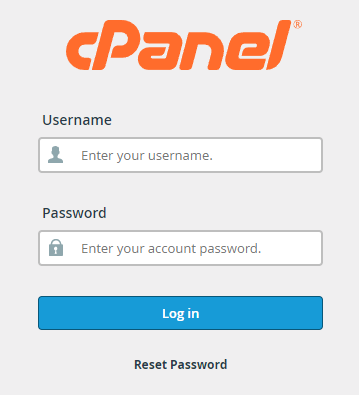
Alternatively, you can log into cPanel directly by following these steps to get cPanel access:
- Find your login details – Check your welcome email for your cPanel URL, username, and password.
- Visit the login page – Usually, it looks like
https://yourdomain.com/cpanel. - Enter credentials – Type your username and password, then click Log In.
- Access your dashboard – Once logged in, you’ll see all the tools to manage your website.
💡 Tip: Bookmark your login page for quick access next time.
Quick Links:
cPanel Encyclopedia
Step 2: Reset Your Password
Forgot your password? Here’s how to regain cPanel access:
- Go to your cPanel login page.
- Click Forgot Password?
- Enter your email address associated with your hosting account.
- Open the password reset email and follow the instructions.
Our clients usually don’t need this step, as we handle all the behind the scene work for them.
Need help? Contact us: 100PercentWeb Contact Page
Step 3: Share cPanel Access Safely
Sometimes you need to give someone temporary access. Keep your account secure by following best practices:
- Only share access with trusted people
- Use temporary passwords if possible
- Remove access once it’s no longer needed
Learn more here: How to Share Access
Step 4: Explore Your Hosting Resources
Once you have cPanel access, take advantage of these helpful resources:
- Knowledge Base – Step-by-step tutorials
- Web Hosting Articles – Tips and guides
- Web Hosting Services – Explore plans and features
FAQ: cPanel Access
What if I don’t have my cPanel login details?
Can I access cPanel on my phone?
Is my cPanel dashboard secure?
Can I give someone temporary access?
I’m new to hosting—where should I start?
Get Started with cPanel Access Today!
Managing your website has never been easier. Log in, explore, and make the most of your hosting.
Quick Links:
Contact Support | Learn More About Web Hosting