 100% Canadian


If you’ve ever opened your WordPress dashboard, clicked into Tools → Site Health, and felt a wave of mild panic at the list of yellow warnings staring back at you — you’re not alone. We get support tickets about this regularly, and in the vast majority of cases, the site is working perfectly fine.
This guide is here to save you the worry and, in some cases, the accidental changes that come from trying to fix things that weren’t broken.
Skip to the Table, short version.
What WordPress Site Health actually is
WordPress Site Health is a built-in tool that runs a series of checks on your website. It shows you a status — usually “Good,” “Should be improved,” or “Critical” — along with a list of individual items flagged as either Passed Tests or Recommended Improvements.
Here’s the key thing to know: Site Health is a best-practice checklist, not a problem report. It’s WordPress’s way of saying “here’s how an ideal setup looks” — not “here’s what’s broken on your site.”
Think of it like a car inspection that flags the fact your back seat has a scuff on it. The car still drives. The brakes work. You can get from point A to point B without any issues. The scuff is just there on the report.
Common warnings that look alarming but usually aren’t
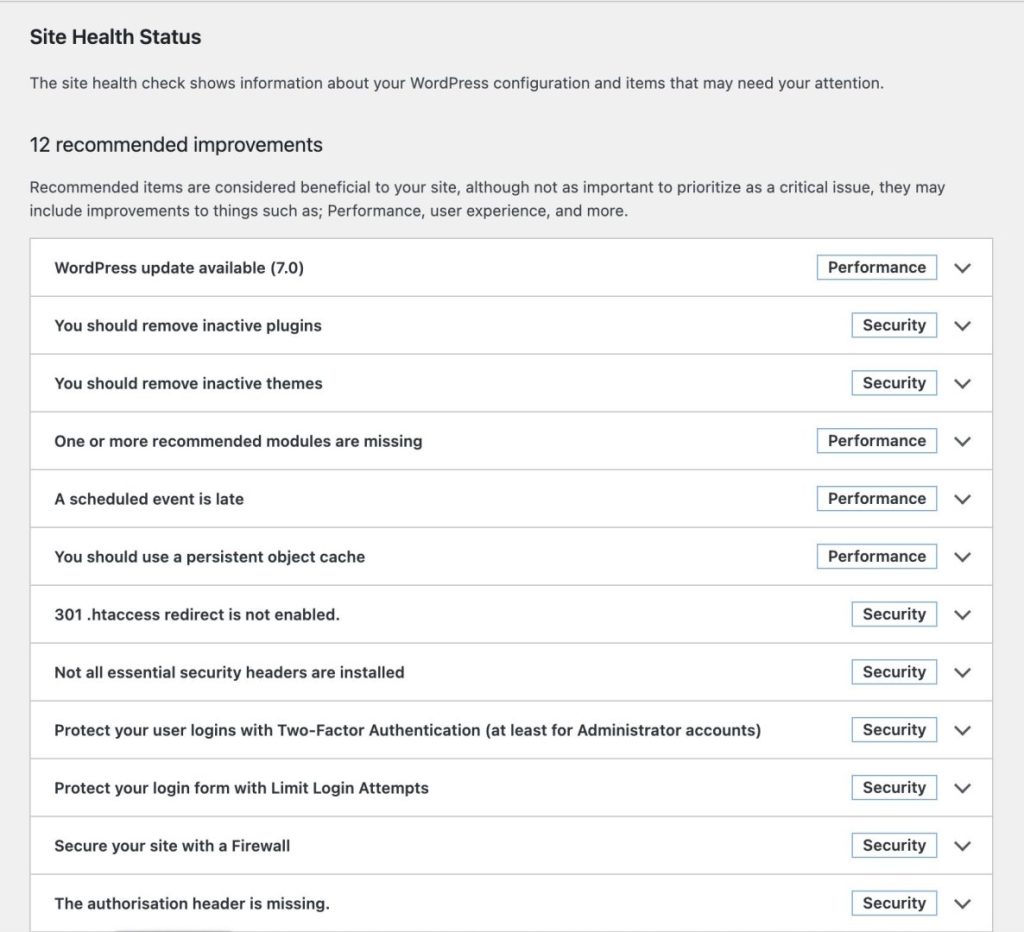
Here are the Site Health notices we hear about most often from clients. In almost all cases, the site is functioning normally and no action is needed.
“REST API encountered an error” or “Loopback requests are failing”
These sound serious, but they’re often caused by security plugins or server-level settings doing exactly what they’re supposed to do — blocking outside access to certain parts of your site. If your pages are loading and your forms are working, this is almost always fine to leave alone.
“Your site does not have the Imagick library installed” or “GD Library”
WordPress uses these tools to process images. Both work. This notice typically just means your server is using one and WordPress expected to see the other. Unless images on your site are visibly broken, this isn’t something you need to do anything about.
“Your site does not have a persistent object cache”
An object cache is a performance feature — not something your site requires to function. This notice means your site could potentially load faster with one configured. It does not mean anything is slow right now, and enabling one without the right setup can sometimes create more headaches than it prevents.
HTTP/2 or other performance-related suggestions
These are speed and efficiency improvements, not problems. A site without HTTP/2 is not a broken site. These are typically server-level decisions that we manage as part of your hosting environment based on what’s appropriate for your setup.
“Your site has inactive plugins or inactive themes”
WordPress is suggesting you tidy up, not telling you something is going wrong. That said, if you have old plugins or themes you genuinely don’t use anymore, removing them is a reasonable thing to do when you have a moment — just don’t rush it, and don’t delete a theme that’s used by your site.
Background update or scheduled task (cron) notices
WordPress runs scheduled tasks in the background — sending emails, checking for updates, and so on. If Site Health flags something related to cron jobs or background updates, it often means a setting is slightly different from the default. It usually doesn’t mean those tasks have stopped running entirely. If you’re actually seeing emails fail or updates not happening, that’s a different conversation — see below.
“A new version of WordPress is available”
Seeing an update notification for WordPress can make it feel like you need to click Update Now immediately, but that’s not always the best approach. While keeping WordPress up to date is important for security and stability, major version releases can occasionally introduce compatibility issues with themes, plugins, or custom functionality. Unless you’re dealing with a security emergency, it’s often worth waiting a short time while developers release compatibility updates and any early issues are identified. We’ll be covering this in more detail in next month’s blog post, where we’ll explain the safest approach to WordPress core and plugin updates, and why rushing to install every new release isn’t always the right choice.
A word about AI tools and Site Health
We’ve noticed a pattern lately: a client opens Site Health, sees some warnings, pastes the text into ChatGPT or a similar tool, and gets back a confident-sounding list of “fixes” to apply. We understand the impulse — it’s fast and it feels helpful.
The problem is that AI tools interpret Site Health notices at face value, without knowing your specific hosting environment, your site’s configuration, or what’s actually causing a particular flag. A suggestion that makes sense for one type of setup can break things in another. We’ve seen this lead to unnecessary plugin installations, configuration changes, or support tickets for problems that didn’t exist before the “fix” was applied.
If something in Site Health is worrying you, the right first step is to ask us — not to act on it.
When you should contact us right away
Site Health is not the tool to rely on for spotting real emergencies. These are the situations where you shouldn’t wait:
- Your site is down or returning an error page
- You can’t log in to your WordPress admin
- Core functionality is broken — checkout isn’t working, forms aren’t submitting, bookings aren’t going through
- Updates are failing repeatedly and you can’t clear the issue
- Emails from your site have stopped arriving — contact forms, order confirmations, etc.
- Something looks wrong to visitors — unexpected redirects, a warning from Google, a browser security alert
- You’re seeing visible error messages or PHP errors on the front end of your site
Any of the above is a real problem. Please reach out to us immediately and we’ll get on it ().
Site Health warnings that don’t fall into any of the above categories? Generally safe to leave as-is.
The short version
| What you’re seeing | What it usually means | What to do |
|---|---|---|
| Yellow “Should be improved” items | Optional best-practice suggestions | Nothing, unless you have a specific issue |
| Red “Critical” items | Worth a closer look, but still not always urgent | Contact us if something isn’t working |
| Passed Tests with green checkmarks | Everything is fine | Nothing |
| A long list of Recommended Improvements | WordPress being thorough | Read this guide, then relax |
We’re here when you need us
If you’re ever unsure whether something in your WordPress dashboard is worth acting on, the easiest thing to do is drop us an email. We’d much rather answer a quick question than untangle something that went sideways after an unnecessary change. A two-line email to us is always a better first step than a series of “fixes” applied in a hurry.
Contact us — whether you have a Site Health question, need an update handled, or want a set of professional eyes on your site.
Related reading
If you found this helpful, these guides from our blog cover other practical topics for business owners managing their online presence:
- Defending Against AI-Enabled Attacks on Your Website — What’s actually changed with AI-powered threats, and how our hosting protects you automatically.
- Why Secure Hosted Email is Your Best Defense Against Phishing in 2026 — Why your email setup matters just as much as your website security.
- How to Secure Your Website: A Simple Guide for Business Owners — A plain-language overview of website security that doesn’t require a tech background.
- How to Get Local Support When You Need It — Why working with a local Canadian hosting provider makes a real difference.
- How to Access Your cPanel / Hosting Dashboard — A step-by-step walkthrough if you need to get into your hosting account.